
The LumenPod guide · Privacy on Mac
How to Keep Photos Private on Mac
A practical guide to hidden albums, disk protection and a photo collection with its own password. Start with the privacy you need, then check every copy.
By LumenPod · A guide to the direct-download edition
Choose the protection you need
To keep photos private on a Mac, decide who should be able to see them. For pictures you simply want out of your main library, Apple Photos has a Hidden album. To protect a lost Mac, use FileVault. For a collection that needs its own password, use a locally encrypted vault.
These options work at different levels. You can use more than one.
| Your goal | Start with | What to remember |
|---|---|---|
| Keep pictures out of your main Photos view | Apple Photos Hidden album | On macOS Ventura and later, it is locked by default using your Mac login password or Touch ID. |
| Protect the data on a lost or stolen Mac | FileVault | It protects the startup disk at rest; files remain available to an authorized, signed-in user. |
| Give selected photos and videos a separate password | An encrypted vault in LumenPod | Protect the files, check any unencrypted copies, and back up your recovery files. |
Hide pictures in Apple Photos
For occasional privacy within an existing Photos library, start with the built-in option:
- Open Photos and select the pictures or videos.
- Choose Image → Hide Photos, or Control-click the selection and choose the hide option.
- Confirm. The items disappear from the main library view but are not deleted.
- To find them again, choose View → Show Hidden Photo Album, then open Hidden under Utilities. Authenticate when prompted.
On macOS Ventura and later, the Hidden album is locked by default. Keep its authentication setting enabled. It uses your Mac login credentials rather than a separate collection password. If you use iCloud Photos, hiding pictures also hides them on your other devices; it does not move them out of iCloud.
See Apple's instructions for hiding photos on Mac.
Turn on FileVault
FileVault adds disk-level protection, which matters if your Mac is lost or someone tries to access its storage without your login credentials. On recent macOS versions, look in System Settings → Privacy & Security → FileVault and follow the setup instructions. Store your recovery information somewhere you can reach without this Mac.
After you sign in, your apps can access the files your account is allowed to read. FileVault therefore does not give one photo collection a separate password within an already unlocked session. Use a separate macOS account for each person who shares your Mac, and lock your screen when you step away.
Read Apple's FileVault setup and recovery guidance before changing its settings.
Create a private collection in LumenPod
LumenPod is useful when your photos and videos already live in folders and you want to browse, organize and encrypt selected files locally. Your media is not uploaded to LumenPod servers.
The steps here describe the direct-download edition from this website, for Apple Silicon Macs running macOS 12 or later. It requires a paid license. This edition catalogs files where they are; importing a folder does not automatically copy or encrypt it.
1. Add a small folder first
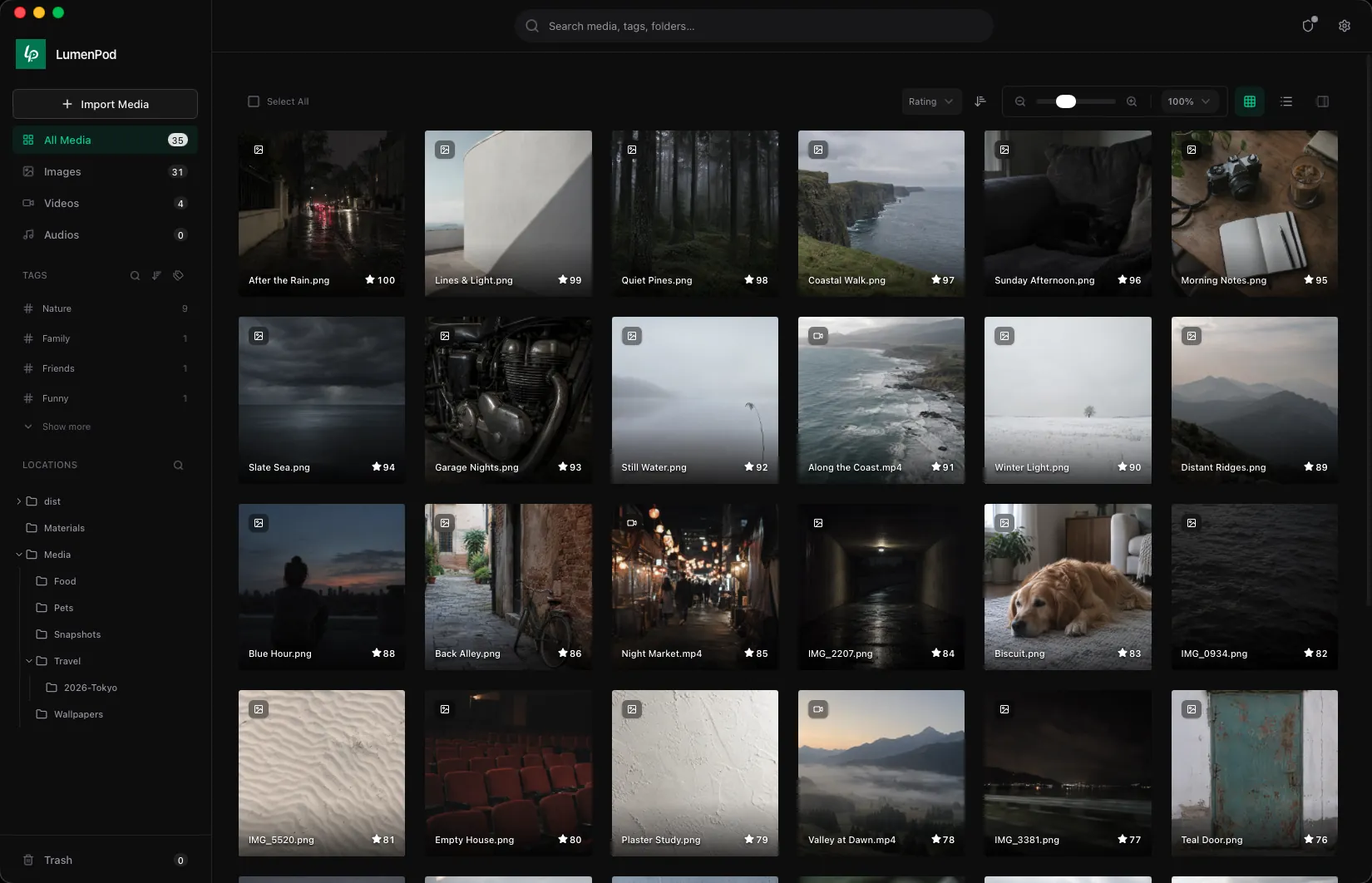
Download LumenPod, activate your license, and choose Import Media to add a folder. Start with a few non-sensitive sample photos so you can check the workflow before protecting your main collection. Tags, ratings and search help organize the library; they do not encrypt its contents.
2. Open a vault with its own password
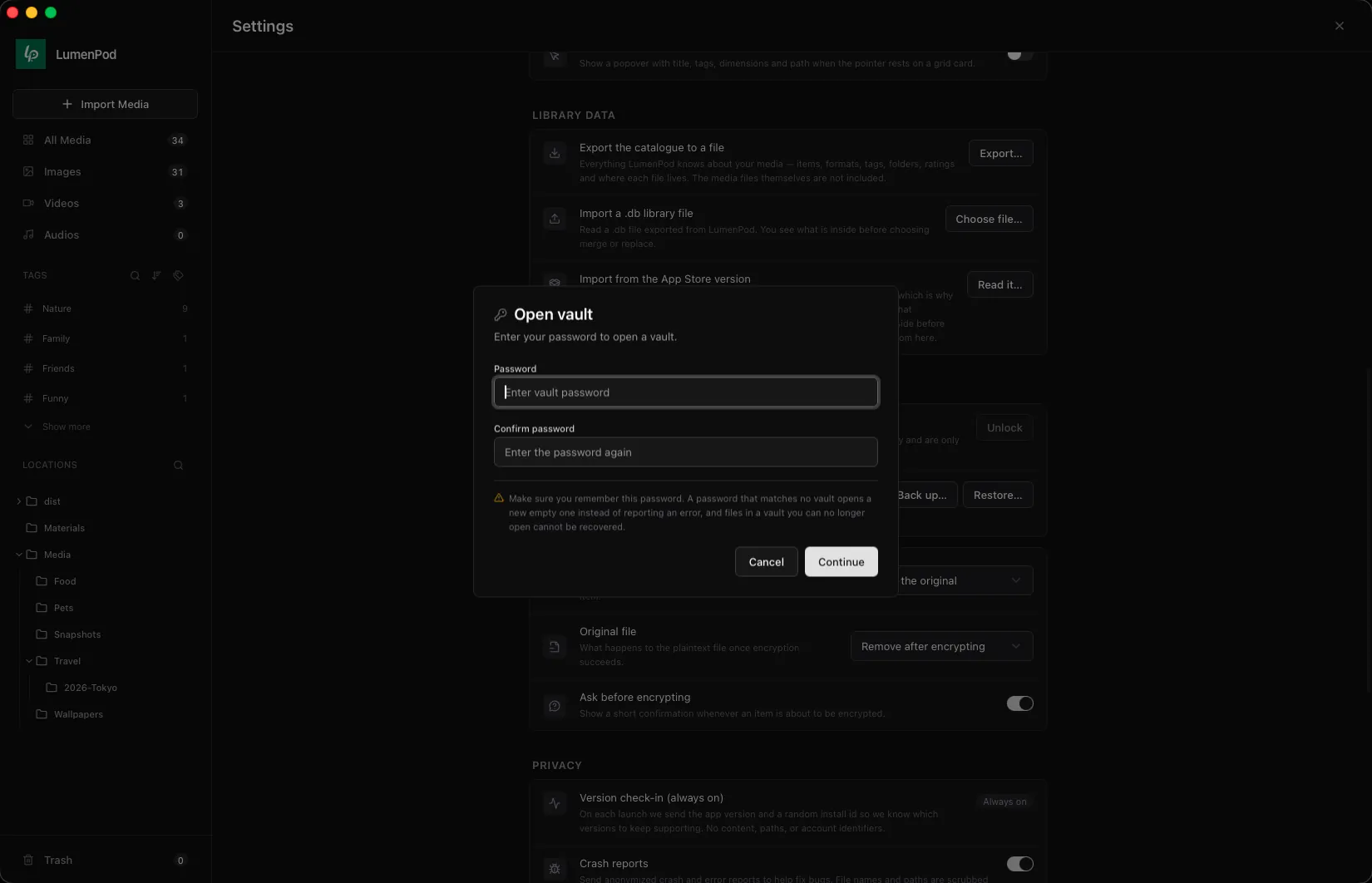
In Settings → Encryption, open a vault and follow the password dialog. Each password opens its own vault. Use a strong, unique password and save it in your password manager.
The app can open a new, empty vault when a password does not match an existing one. If a vault looks unexpectedly empty, check that you entered the intended password before adding more files.
3. Encrypt the selected files
Use Encrypt on a sample item. Check Settings → Encryption for the encrypted file location and the Original file option. The app can keep the original or remove it after encryption; choose deliberately.
If you keep the original, that unencrypted copy remains readable outside the vault. Removing an original after encryption is not a guarantee of secure erasure, and it does not remove copies from Photos, cloud storage, messages or older backups.
Check that the encrypted sample opens correctly with the intended vault before applying the same workflow to more photos. Hiding an item changes visibility; use encryption when you need its file contents protected.
4. Back up recovery files
In Settings → Encryption → Recovery files, choose Back up…. Save both the recovery data file and its matching key file in separate places. Anyone who has both can restore access to your vaults without the original passwords.
Update this backup when the app reports that your vaults have changed. Follow its instructions about replacing older recovery files. Keep a separate backup of the encrypted media too: recovery files restore access to keys, not missing photos.
Your website password cannot unlock a vault. Without its password or valid recovery files, support cannot recover the encrypted collection for you.
Check the copies outside your vault
Encrypting one file only protects that copy. Before calling a collection private, check where else its contents might be readable:
- Apple Photos and iCloud Photos. A vault does not change an existing Photos library or its sync settings.
- Finder folders. Review Downloads, Desktop, export folders, shared folders and other disks.
- Messages and cloud services. Previously shared attachments and uploaded copies are independent of the file on your Mac.
- Backups. Older backups may still contain unencrypted originals. Use encrypted backups and control who can access them.
Verify that you have a working protected copy and a usable backup before removing anything. Review originals individually rather than assuming an import, hide action or encryption operation has handled every duplicate.
When you finish viewing private media, close or lock the vault and lock your Mac before leaving it unattended. An unlocked vault is a viewing session: someone using that session may be able to see what you can see.
Questions before you start
Can I password-protect an album in Apple Photos?
The Hidden album can require your Mac login password or Touch ID on supported macOS versions. It does not let you assign a different password to each ordinary album. For a separate collection password, use an encrypted vault.
Can I use LumenPod without uploading my photos?
Yes. Media browsing, encryption and decryption happen locally. License activation and periodic checks need an internet connection. Local storage does not disable other backup or sync tools you have configured on your Mac; review those separately.
Does uninstalling LumenPod unlock my files?
No. Encrypted files still require a compatible copy of LumenPod and the keys needed to open them. Keep the app, media backups and recovery files available. Export and verify anything you want to use outside the app before removing it.
What should I do first?
Pick a few sample photos, back them up, and practice the full workflow: import, open a vault, encrypt, reopen and back up recovery files. Once you understand where each copy lives and how to regain access, apply it to your private collection.
Apple Photos and FileVault instructions link to Apple’s documentation above. LumenPod instructions describe this website’s direct-download edition; labels can vary by app version. See our privacy policy for details about data handling.