
Personal media collections · 02 / In your folders
Organize Images, Videos and Audio Without Moving Files
Build a personal media library on Mac while keeping your originals in the folders you already use.
By LumenPod · Updated October 24, 2026 · Direct-download edition
A media library without another copy
You can organize images, videos and audio on Mac without moving the originals into a separate library. The useful distinction is between where a file lives and how you find it: folders provide storage locations, while a media catalog adds browsing, tags and ratings over those locations.
LumenPod's direct-download edition works this way. Adding a folder creates library entries for existing media. It does not automatically copy, move or encrypt your originals. The app still maintains its own catalog and supporting data; keeping originals in place does not mean the app uses no additional disk space.
This approach fits a personal collection that already has a folder structure you want to keep. It also lets you browse supported images, videos and audio together rather than keeping a separate organizational system for each type.
Start with one existing folder
- Choose a small folder containing a few supported images, videos and audio files. Keep a backup of the originals.
- Activate LumenPod and use Import Media to add that folder. These instructions apply to the direct-download edition from this website.
- Open a few items from the library. Check in Finder that their originals still occupy the same folders.
- Add a subject tag to related items and give a few favorites a rating. Search for the tag to bring that subset back into view.
- Add another folder when the workflow makes sense. You do not need to reorganize your whole archive before beginning.
The interface uses the word Import, but this edition's folder import is cataloguing in place. That matters if you are looking for a media organizer “without importing”: you still add files to its catalog, even though you do not copy them into a managed media library.
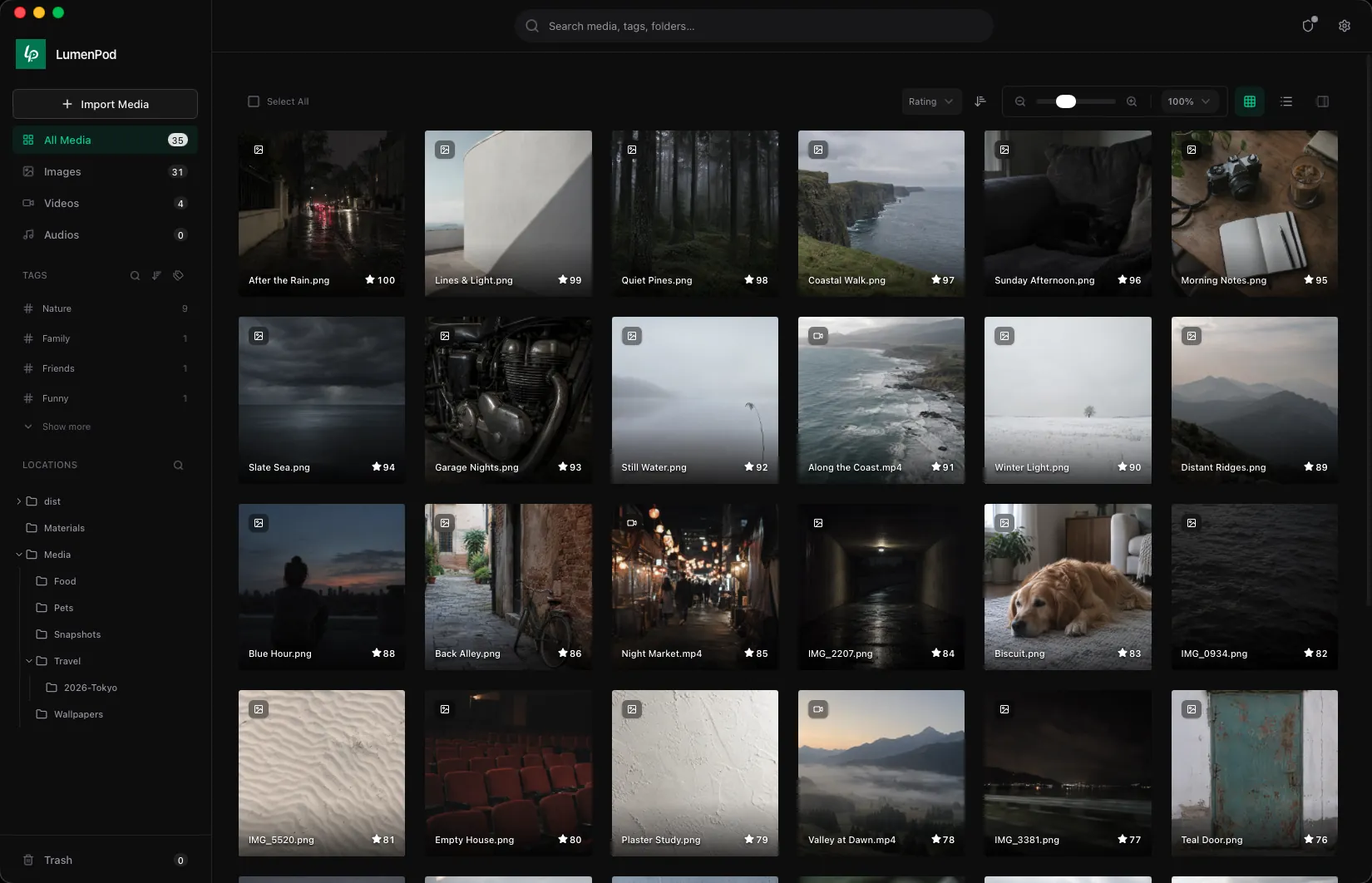
Organize a mixed media collection
Start with a small vocabulary of tags you will remember. For a collection about nature, Coast, Forest and Birds can work across saved images, videos and personal recordings. For other collections, use genres, subjects or artists that matter to you.
Use ratings for a separate question: which items are worth returning to? A subject tag describes what something is about; a rating helps distinguish favorites within that subject. Apply each consistently rather than making every item a favorite.
Folders can remain arranged by source, year or drive while tags describe shared interests. An image under Images/Coast, a video under Videos/Trips, and a recording under Audio/Waves can share the same Coast tag. You get another way to find them without making duplicate subject folders.
View images and play videos or audio from the library. If one collected work has alternate copies or supporting resources, keep those together as an item; see organizing video versions, cover art and subtitles for a concrete example.
Organize personal recordings alongside images and videos
For personal audio recordings, use descriptive names and a few subject tags. A spoken recollection, a saved image and a video can share a topic tag while remaining in their own folders. Play supported recordings from the same local media library. These are catalog tags; this workflow does not promise audio transcription or editing embedded music tags.
Understand what stays in place
| Action | What to expect |
|---|---|
| Add an existing folder in the direct-download edition | Originals remain in their current locations; the app creates catalog entries. |
| Tag or rate a library item | Your library organization changes. Do not assume these values are written into every original file or shared with other apps. |
| Disconnect an external drive | Its catalogued media remains listed offline; opening its files requires reconnecting the drive. |
| Move or rename originals outside LumenPod | Check their availability afterward; the saved location may no longer resolve. |
| Encrypt selected media | This is a separate operation with its own original-file retention settings. Review those settings first. |
The Mac App Store edition has different storage behavior: it copies imported files into its sandboxed container. If keeping existing originals in place or cataloguing external drives is essential, use the direct-download edition. See edition differences in support.
Media organization questions
Can I keep photos, videos and audio in one library?
Yes. LumenPod supports images, videos and audio in a personal media collection, with tags and ratings for organization. Playback depends on the particular file being supported and available; this is not a promise to play every codec or format.
Does cataloguing upload my collection?
Your media is not uploaded to LumenPod servers. License activation and periodic license checks require internet access. Files in a folder managed by another cloud service still follow that service's settings.
Does adding a folder make it private?
Adding, tagging and hiding are different from encryption. For selected private files, use local encrypted vaults and check any unencrypted originals. The photo privacy guide explains the copy and recovery considerations.
What if my collection spans several hard drives?
Add the media folders while each drive is connected. Use the external-drive catalog guide to test offline entries and identify which drive holds a file.